FAQ program ValOffice
-
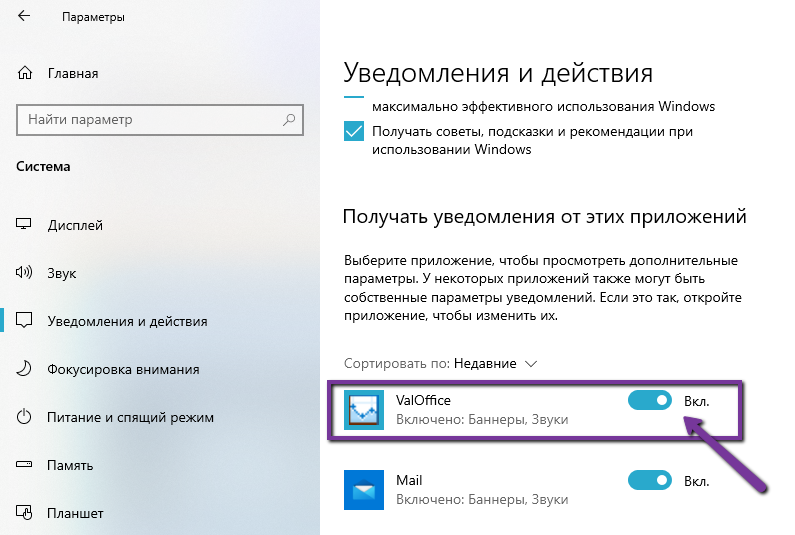
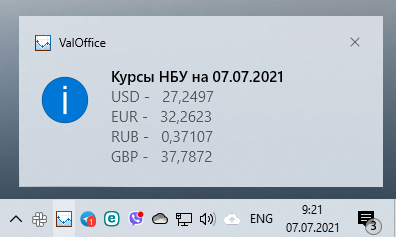
07.07.21 05:48 Question: The program notifications that used to show when receiving new rates and clicking on the program icon have stopped displaying.
Answer:
 Check that the Windows taskbar notification settings allow receiving notifications from the Valoffice program.
To do this, open the "Settings" section via the Start menu, then "System", "Notifications & actions" and make sure that in the "Get notifications from these senders" section, the checkbox next to the Valoffice program is checked.
Check that the Windows taskbar notification settings allow receiving notifications from the Valoffice program.
To do this, open the "Settings" section via the Start menu, then "System", "Notifications & actions" and make sure that in the "Get notifications from these senders" section, the checkbox next to the Valoffice program is checked.
-
05.04.14 17:58 Question: When I try to start the program, I get a message: "One copy of the ValOffice program is already running. Use its icon in the system tray to manage the program." I don't see any icon. Where should I look for it?
Answer:
 The system tray is part of the taskbar (the taskbar is the panel where the "Start" button is located), which displays the computer's system time (see screenshot). It is usually located in the lower right part of the screen (in the right part of the taskbar), but please note that Windows allows placing the taskbar on any side of the screen and automatically hiding it.
In minimized mode, the program is managed using the icon located in the system tray. If the program icon is not on the panel, go to the panel settings and set the program icon mode to "Show icon and notifications".
The system tray is part of the taskbar (the taskbar is the panel where the "Start" button is located), which displays the computer's system time (see screenshot). It is usually located in the lower right part of the screen (in the right part of the taskbar), but please note that Windows allows placing the taskbar on any side of the screen and automatically hiding it.
In minimized mode, the program is managed using the icon located in the system tray. If the program icon is not on the panel, go to the panel settings and set the program icon mode to "Show icon and notifications".
-
01.04.14 10:25 Question: How can I view the Swiss Franc exchange rate? The program window only shows the rates for the US Dollar, Euro, Russian Ruble, and British Pound.
Answer: By default, the currency list in the program's main window only displays currencies from the favorite currencies list (initially USD, EUR, GBP, RUB, UAH). To see the full list of currencies, uncheck the menu item "View - Only Favorites" (press Ctrl+F). The list of favorite currencies can be edited according to your preference in the program settings (menu "Tools - Settings").