
BgPlayer Program Help
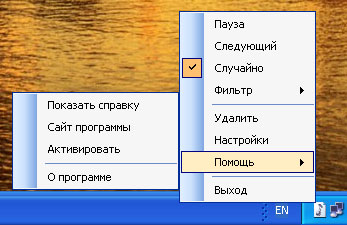 This program is designed for users who like to listen to music while working on the computer.
Moreover, just listen, without contemplating the magnificent graphical interfaces
of super media players. The program has almost no graphical interface.
The space it occupies on your desktop is a 16x16 pixel icon in the system tray.
Launch it - and enjoy the music.
This program is designed for users who like to listen to music while working on the computer.
Moreover, just listen, without contemplating the magnificent graphical interfaces
of super media players. The program has almost no graphical interface.
The space it occupies on your desktop is a 16x16 pixel icon in the system tray.
Launch it - and enjoy the music.
Program Installation.
The program requires .Net Framework 2.0. This platform is already included in the latest versions of Windows, so in most cases you won't need to install it. If you see an error message when starting the installer, download and install this product.
To install the program, do the following:
- Download the installer program (link is on the program page).
- Remove previous versions of the program (if you have installed the program on your computer before), using the "Add or Remove Programs" shortcut in the control panel.
- Run the installer program and follow its instructions.
Program Registration.
The program can be used for free, with some functionality limitations, or on a paid basis. There is also the possibility of free full-featured trial use for one month.
The limitations of the free version are:
- Limited number of files in the playlist - no more than 100.
- No playlist filtering capability.
More details: https://www.pf-soft.net/products/bgplayer
Operation Description. Main Features.
The program plays audio files in mp3, wav, wma formats located in folders specified by the user. Folders with files for playback are added by the user using the program settings dialog. From the contents of the folders, the program forms a playlist and plays in sequence, or in random order (depending on the set "Random" checkbox in the menu) each file.
Launching the Program
During installation, the program places shortcuts for launching the program on the desktop, in the main menu "Start - All Programs - BgPlayer" and the quick launch panel. If the "Run with Windows" checkbox is set in the program settings, the program will automatically start when the operating system starts.
Playback Control
Program control and, in particular, playback, is carried out using the program icon (located in the system tray area of the monitor), the context menu (which opens by right-clicking on the icon) or using global hotkeys.
Use the following commands to control playback:
- Left-click on the icon (Menu item "Next") - play the next file in the playlist;
- Shift + Left-click on the icon (Menu item "Pause/Start") - stop/start playback;
- Shift + Ctrl + Left-click on the icon (Menu item "Delete") - delete the current file;
- Ctrl + Left-click on the icon - view information about the current state of the player.
Filtering
This program feature allows the user to listen to files from only one
selected folder.
This feature is not available in the Free and Home editions of the program.
Program Settings.
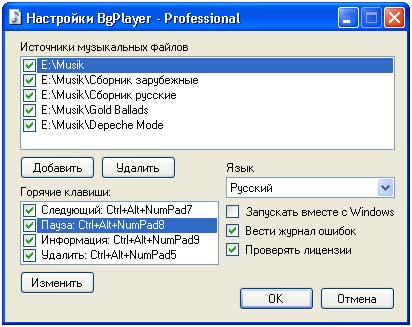 The program settings consist of the following items:
- Sources of music files
Using the appropriate buttons, folders are added to or removed from this list, from the contents of which the program will form a playlist for playback. All subfolders are also taken into account. If the checkbox next to the folder name is unchecked, it will be ignored when forming the playlist. - Language
In this dropdown list, you can select a more suitable user interface language. Currently, three languages are available: English, Russian, Ukrainian. - Run with Windows
If this checkbox is set, the program will start automatically when Windows starts. - Log errors
When the checkbox is set, all errors that occur during the program operation are recorded in a file, which you can later provide to the developer. - Check licenses
When the checkbox is set, the program checks for the presence and validity period of license keys upon startup. - Hotkeys
Here you can set or change global hotkeys for program control. The following key combinations are set by default:
- Play next file: Ctrl+Alt+7 (on the numeric keypad);
- Stop/Start playback: Ctrl+Alt+8 (on the numeric keypad);
- Show information: Ctrl+Alt+9 (on the numeric keypad);
- Delete current file: Ctrl+Alt+5 (on the numeric keypad).
To change these key combinations, select the desired line in the list and press the "Change" button.
Frequently Asked Questions
For all questions, comments and suggestions, please contact the PFSoft support service.
Change Log
- 1.1 - 10.03.2011
- Added global hotkey control, implemented integration with the operating system.
- 1.0 - 01.12.2010
- Program release.