
ClientCard - Program for Creating Registration Cards in SCS
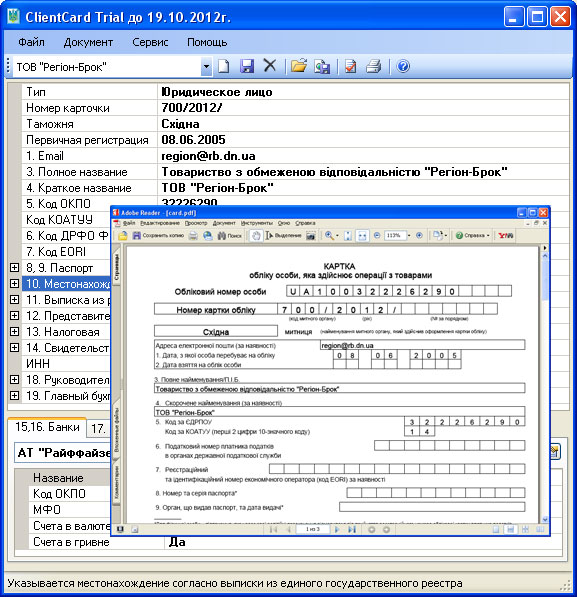 This program is designed for creating registration cards when accrediting enterprises
in the bodies of the State Customs Service of Ukraine. The program's capabilities fully
comply with the requirements of the "Procedure for Accounting of Persons Conducting Operations with Goods",
approved by the order of the Ministry of Finance of Ukraine No. 634 dated 30.05.2012.
This program is designed for creating registration cards when accrediting enterprises
in the bodies of the State Customs Service of Ukraine. The program's capabilities fully
comply with the requirements of the "Procedure for Accounting of Persons Conducting Operations with Goods",
approved by the order of the Ministry of Finance of Ukraine No. 634 dated 30.05.2012.
Program Installation.
The program requires .Net Framework 2.0. This platform is already included in the latest versions of Windows, so in most cases you won't need to install it. If you see an error message when starting the installation program, download and install this product.
Also, to read the generated PDF format cards, you need to have some PDF reader program on your computer, for example Adobe Reader.
To install the program, do the following:
- Go to the program page and download the installation program.
- Remove previous versions of the program (if you have installed the program on your computer before) using the "Add or Remove Programs" shortcut in the control panel.
- Run the installation program and follow its instructions.
Program Registration.
The program can be used either for free, with some functionality limitations, or on a paid basis. There is also the possibility of free full-functional trial use for one month.
The limitations of the free version are:
- No export to RTF and HTML.
- Ability to work with only one enterprise.
- Loading of registration card from file is unavailable.
- Automatic program update is unavailable.
- Presence of headers and footers when printing.
More details: https://www.pf-soft.net/products/clientcard
Working with the Program.
Data Entry
To create a new registration card, use the menu item "Document-Create" or the key combination Ctrl+N. If you are running the program for the first time, a new card will be created automatically.
Start filling out the card by selecting the type of foreign economic activity entity, which can be one of the following types: individual entrepreneur with a tax number; legal entity; individual entrepreneur who refused to obtain a tax number; other entities.
The following fields "Card Number", "Customs" and "Primary Registration" according to the procedure are filled in by customs officials, but if you wish, you can fill them in. This should be done as follows: in the "Card Number" field, enter your registration card number (to the extent that it is known to you), in the "Customs" field - the name of the customs office where you are registering, and in the "Primary Registration" field - the date of registration with the customs authorities, if known to you.
Fill in all other items according to the Procedure.
For legal entities, the following items must be filled in: 3-5, 7, 10-20.
For individual entrepreneurs with tax number: 3, 6, 10, 11, 13-16, 20.
For individual entrepreneurs without tax number: 3, 8-11, 13-16, 20.
Also, at some customs offices for individual entrepreneurs, it is required to fill in the KOATUU code in item 5.
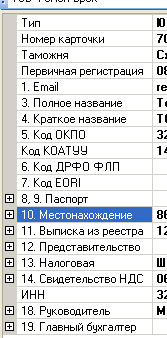
Some items (for example, "Location") have a complex structure and are initially collapsed for convenience. To start editing them, you need to expand them by clicking on the square with the "+" sign on the left or by pressing the "right arrow" key on the keyboard.
Data entry about banks, branches, and declarants is done on the corresponding tabs of the panel located at the bottom of the program's working window. To manage the corresponding objects (add, delete, copy) use the button located to the right of the drop-down list.
To control the correctness of the entered data, use the menu item "Document-Check" or the F8 key.
Printing Registration Card
In version 2.1.0, registration cards can only be printed from external programs, meaning the program only exports data to a file of the appropriate format and opens it in the program associated on your computer with files of that type.
The program can create registration cards in the following formats:
- PDF - used by default. To create a card in this format, use the menu item "Document-Print-PDF" or the key combination Ctrl+P. Files of this format can be viewed with Adobe Reader.
- RTF - To create a card in this format, use the menu item "Document-Print-RTF" or the F9 key. Files of this format are usually opened in Microsoft Word.
- HTML - To create a card in this format, use the menu item "Document-Print-HTML" or the F10 key. Files of this format are opened in any internet browser.
Creating Electronic Copy
To create an electronic copy of the registration card, you need to use the menu item "File-Export", or the key combination Ctrl+Shift+S.
Program Settings.
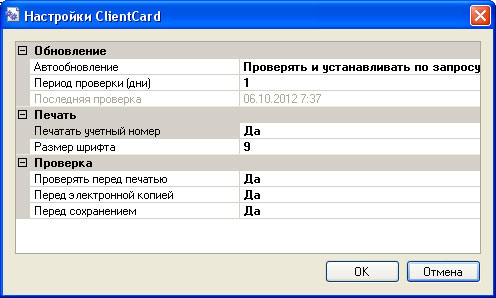 Brief description of program settings:
- Update
Auto-update - specifies the mode of automatic program update;
Check period - specifies the period (in days) for the program to check for updates;
Last check - displays the time of the last update check. - Print
Print registration number - when enabled, the enterprise registration number will be printed$
Font size - specifies the font size for printing the registration card (in version 2.1.0 only for PDF). - Check
Specifies in which cases data verification should be performed.
Frequently Asked Questions
- Is it possible to not create a card "from scratch" for a new enterprise, but to copy data from some previously entered card?
-
Yes, it is possible. To do this, you need to do the following:
- select the enterprise from the list of enterprises whose data you want to copy;
- enter the data about the EDRPOU code (or DRFO for individual entrepreneurs), and the full name of the new enterprise;
- save the document - at this point the new enterprise will appear in the list of enterprises and all data will be copied.
Change History
- 2.1.1 - 10/11/2012
-
- A number of checks have been added to the data verification function.
- Fixed an error of not entirely correct copying of the manager and chief accountant to the list of persons responsible for working with customs.
- Fixed HTML export errors for individual entrepreneurs (in items 6-9). - 2.1.0 - 10/07/2012
- Program release.