
Довідка про програму ImfxEditor
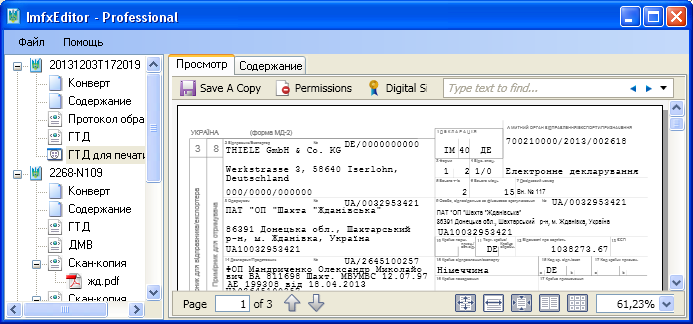 Ця програма дозволяє переглядати вміст файлів, збережених у форматі IMFX.
Цей формат розроблений та застосовується Державною митною службою України для отримання відомостей від декларантів.
На даний момент майже всі електронні копії документів приймаються ДМСУ у цьому форматі.
Серед таких документів: митна декларація на товари, декларація митної вартості, картка акредитації суб'єкта ЗЕД, реєстр транспортних засобів та ін.
Після встановлення програми ваш комп'ютер розпізнаватиме файли з розширенням *.imfx, і при подвійному клацанні на файл у провіднику він відкриється в цій програмі.
Ця програма дозволяє переглядати вміст файлів, збережених у форматі IMFX.
Цей формат розроблений та застосовується Державною митною службою України для отримання відомостей від декларантів.
На даний момент майже всі електронні копії документів приймаються ДМСУ у цьому форматі.
Серед таких документів: митна декларація на товари, декларація митної вартості, картка акредитації суб'єкта ЗЕД, реєстр транспортних засобів та ін.
Після встановлення програми ваш комп'ютер розпізнаватиме файли з розширенням *.imfx, і при подвійному клацанні на файл у провіднику він відкриється в цій програмі.
Встановлення програми
Щоб встановити програму на комп'ютер, завантажте з
веб-сторінки програми
інсталятор, запустіть його та дотримуйтесь інструкцій програми встановлення.
Для роботи програми необхідна .Net Framework 2.0. Якщо під час запуску інсталятора ви побачите повідомлення про помилку, завантажте та встановіть цей продукт.
Порада: при встановленні на комп'ютери з операційною системою Windows 7 або новішою не встановлюйте програму на той самий диск, на якому встановлено Windows.
Реєстрація програми
Для повноцінного використання необхідних функцій програми її необхідно зареєструвати. Процес реєстрації полягає в отриманні реєстраційного ключа, який видається після покупки необхідної ліцензії. Ліцензією незареєстрованої копії програми є ліцензія "Free". Таблицю порівняння функціональних можливостей ліцензій програми дивіться на веб-сторінці програми.
Увага! Ліцензія "Trial" є безкоштовною та дозволяє протягом місяця ознайомитись з усіма функціями програми у повному обсязі. При першому запуску вам автоматично буде запропоновано отримати цю ліцензію.
Інформацію про поточну ліцензію можна дізнатись, скориставшись пунктом меню програми "Довідка - Про програму".
Робота з програмою
Перегляд документів
Вікно програми складається з головного меню, дерева структури файлів та вікна перегляду.
Вікно перегляду, у свою чергу, складається з двох вкладок - "Перегляд" та "Вміст".
Дерево структури відображає відкриті у програмі файли та їхній вміст.
У вікні перегляду відображається вміст вибраного у дереві структури елемента файлу.
На вкладці "Перегляд" відображається візуальний вміст, наприклад, оформлена митна декларація або
сканована копія документа, а на вкладці "Вміст" відображається текстовий вміст вибраного елемента
(наприклад, XML файлу).
Відкрити файл IMFX у програмі можна або подвійним клацанням по файлу у провіднику Windows (або іншому файловому менеджері), або, попередньо запустивши програму, скористатись пунктом меню "Файл - Відкрити". За допомогою програми можна відкрити та переглянути кілька файлів одночасно. Щоб одразу відкрити кілька файлів, необхідно при виборі файлу у діалоговому вікні відкриття файлу утримувати натиснутою клавішу Ctrl та позначити мишкою ті файли, які потрібно відкрити.
Редагування XML документів
За допомогою програми ImfxEditor можна вносити зміни до деяких XML документів, які містить у собі IMFX файл. Не можна редагувати XML документи спеціального призначення, визначеного форматом IMFX (конверт, вміст) та файли, підписані електронним цифровим підписом. Для переходу в режим редагування необхідно у вікні перегляду перейти на вкладку "Вміст", у дереві структури вибрати XML документ, який потрібно відредагувати, та вибрати пункт меню "Файл - Редагувати". Після цього текстове поле, що містить XML, стане доступним для зміни. Після внесення змін обов'язково потрібно скористатись пунктом меню "Файл - Зберегти".