
EDManager Program Help
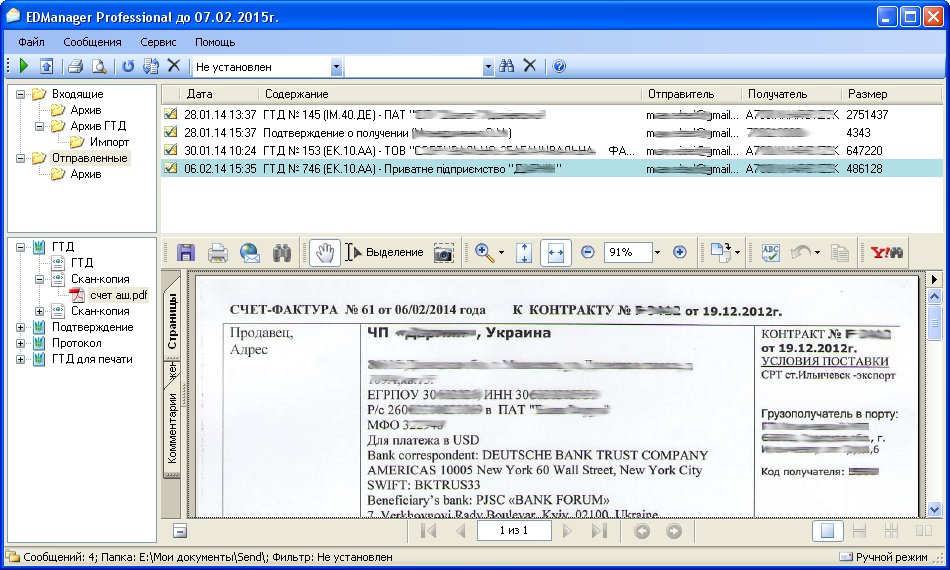 The EDManager program is designed for receiving and viewing electronic messages,
exchanged between the declarant and
the customs authority of Ukraine during the customs declaration of goods using the electronic declaration procedure.
Please note that this program is not intended for sending electronic messages.
The EDManager program is designed for receiving and viewing electronic messages,
exchanged between the declarant and
the customs authority of Ukraine during the customs declaration of goods using the electronic declaration procedure.
Please note that this program is not intended for sending electronic messages.
Program Installation
The main requirement for installing the EDManager program on your computer is the presence of the QDPro program for filling out cargo customs declarations installed on this computer. EDManager works only in conjunction with this program.
The program requires .Net Framework 2.0. This platform is already included in recent versions of Windows, so in most cases you will not need to install it. If you see an error message when starting the installer, download and install this product.
To install the program, do the following:
- Download the installation program from the link located on the program page.
You can access the program page by using the menu item "Help - Program Website"
- If you have installed the program on your computer before - remove its previous version by using the "Add or Remove Programs" shortcut in the control panel.
- Run the installation program and follow its instructions.
If you are installing the program on a computer with the Windows Vista, Windows 7 or later operating system, then to ensure the correct operation of the automatic program update, it is strongly not recommended to install it in the system partition of the hard drive (the partition where the operating system is installed).
Program Registration
The program can be used free of charge, with some functionality limitations, or on a paid basis. There is also the possibility of free full-featured trial use for a period of one month.
A license for free use of the program for one month can be obtained by accepting the offer, which appears automatically when the program is first started.
For more information about the functional differences of different editions (licenses) of the program, see its page.
Working with the Program
The functional capabilities of the EDManager program can be divided into the following components:
- Receiving electronic messages from the customs authority
- Viewing electronic messages received using EDManager or QDPro
- Viewing electronic messages sent using QDPro
Starting the Program
The installation program creates two shortcuts for starting the program - one on the desktop and the other in the main menu "Start - All Programs - EDManager".
When started, the program adds its icon to the system area (typically the lower right corner of the screen), which can later be used to open the program's main window. When the main window is closed, the program does not stop working; to exit the program you must use the program menu item or the context menu item , which appears when you right-click on the program icon.
Configuring Delivery Profiles
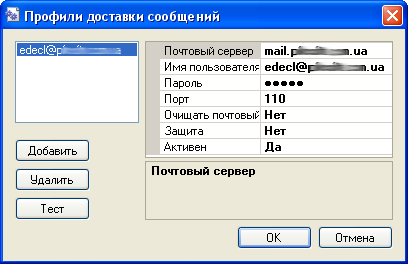 The program supports the function of automatically importing delivery profiles from QDPro. Profiles can also be imported
manually by using the menu item
The program supports the function of automatically importing delivery profiles from QDPro. Profiles can also be imported
manually by using the menu item
The dialog for configuring message delivery profiles can be invoked by using the menu item or the F8 key. Using this dialog, you can configure all parameters of any profile and test it. A description of the profile properties is given in the following table:
| Property | Description | Default |
|---|---|---|
| Mail Server | Name of the mail server, e.g., pop.server.com | |
| Username | Username used for authorization on the mail server | User |
| Password | Password used for authorization on the mail server | |
| Port | Port number used by the mail server for operation | 110 |
| Clear Mailbox | If set, messages will be deleted from the server after downloading | No |
| Security | If set, security will be used when connecting to the server | No |
| Active | Sets whether the profile will be used when downloading messages | No |
Recommended profile settings for some of the most well-known mail services are provided below:
| Property | Gmail.com | Mail.ru | Ukr.net | Meta.ua | Yandex.ru |
|---|---|---|---|---|---|
| Mail Server | pop.gmail.com | pop.mail.ru | pop3.ukr.net | pop.meta.ua | pop.yandex.ru |
| Username | ****@gmail.com | ****@mail.ru | **** | **** | **** |
| Port | 995 | 110 | 110 | 995 | 110 |
| Security | Yes | No | No | Yes | No |
Receiving Messages
The process of downloading electronic messages from the mail server by the program can be started either manually or automatically. For manual start, use the menu item or the F5 key. To enable automatic message downloading at certain intervals use the menu item or the F4 key. The time interval after which automatic message downloading will start can be changed in the program settings (the "Receiving Messages" section).
If, as a result of a communication session with the mail server, the program managed to receive a new message, the program emits an audio signal and displays a pop-up window near the program icon in the system area.
Viewing Messages
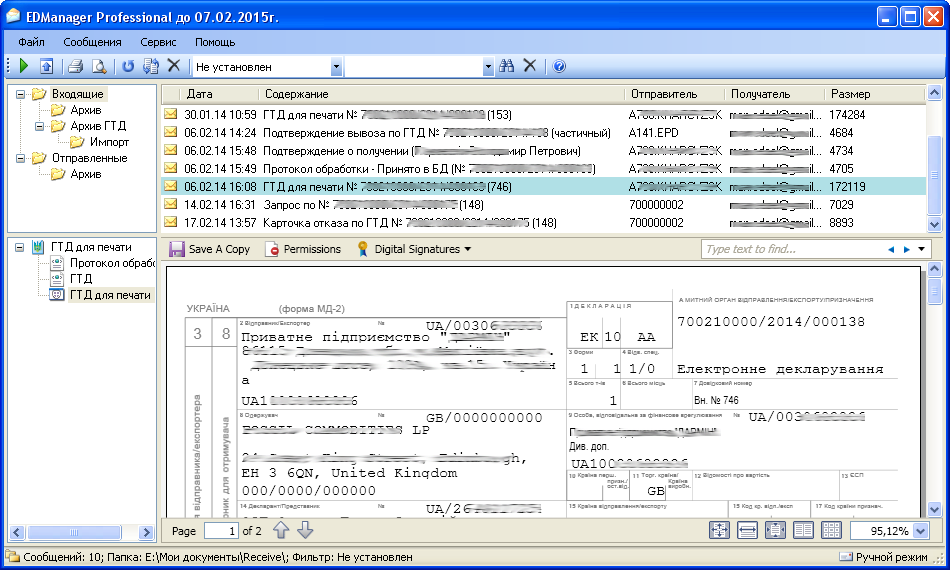 The main window of the program consists of the following elements:
- Folder Tree - displays the structure of folders where electronic messages are stored.
- Message List - displays the list of messages located in the folder selected in the folder tree.
- Structure and Related Messages View Window - this element displays the structure of the content of the message selected in the message list. If an outgoing message is selected in the list, this window will also show the structure of all response messages.
- Content View Window - this window displays the content of the element selected in the structure view window.
Program Settings.
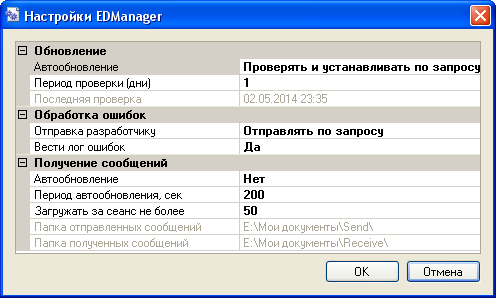 The program settings consist of the following items:
| Setting | Description | Default |
|---|---|---|
| Update | ||
| Auto-update |
This setting determines how the program will attempt to contact the update server and install updates. It is possible to choose one of the following values:
|
Check and install on request |
| Check Period (days) | The time period in days after which the update check occurs. If set to 0, the check will occur every time the program starts. | 1 |
| Last Check | Displays the time of the last update check by the program. Read-only. | |
| Error Handling | ||
| Send to Developer |
Determines how the program responds to errors that occur during operation. It is possible to choose one of the following values:
|
Send on request |
| Keep Error Log | When this setting is enabled, all data about errors that occurred during the program's operation will be written to a log file. Default value: "Yes". You can view the contents of the log file using the menu or the key Shift+F3 | Yes |
| Receiving Messages | ||
| Auto-update | Enables or disables the automatic mode of receiving electronic messages from mail servers | No |
| Auto-update Period | Period in seconds after which automatic message receiving will be performed | 200 |
| Download per session no more than | Not used | 50 |
| Sent Messages Folder | Path to the folder for storing sent messages | Corresponds to QDPro settings |
| Received Messages Folder | Path to the folder for storing received messages | Corresponds to QDPro settings |