
ValOffice Program Help
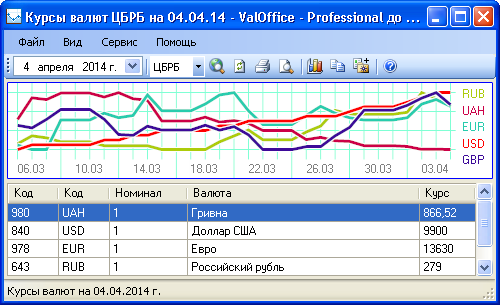 ValOffice - program for viewing exchange rates.
The program allows you to work with exchange rates set by the National Bank of Ukraine, the Central Bank of the Russian Federation, and the Central Bank of the Republic of Belarus.
ValOffice - program for viewing exchange rates.
The program allows you to work with exchange rates set by the National Bank of Ukraine, the Central Bank of the Russian Federation, and the Central Bank of the Republic of Belarus.
Program Installation
For the program to work, .Net Framework 4.6 is required. This platform is already included in the latest versions of Windows, so in most cases you will not need to install it. If you see an error message when starting the installer, download and install this product.
To install the program, do the following:
- Download the installer from the link located on the program's page.
You can get to the program page by using the menu item "Help - Program Website"
- If you have installed the program on your computer before, remove its previous version by using the "Programs and Features" shortcut in the Control Panel.
- Run the installer and follow its instructions.
If you are installing the program on a computer with Windows Vista, Windows 7 or a later operating system, it is highly recommended not to install it on the system partition of the hard drive (the partition where the operating system is installed) to ensure the correct operation of the program's automatic update.
Program Registration
The program can be used for free, with some functional limitations, or on a paid basis. There is also the possibility of free full-featured trial use for one month.
A license for free use of the program for one month can be obtained by accepting the offer that appears automatically when the program is first launched.
For more information about the functional differences of different editions (licenses) of the program, see its page.
Working with the Program
The operation of the program is based on the use of bank web services that provide information on exchange rates. An Internet connection is required for the program to work.
Launching the Program
The installer creates two shortcuts for launching the program - one on the desktop and the other in the main menu "Start - All Programs - ValOffice". In addition, the installer configures the program to start automatically when the operating system starts.
When starting automatically, the program adds its icon to the system area (usually the lower right corner of the screen), which can be used to get information about the exchange rates of the user's selected currencies for the current date or to open the main program window. When the main window is closed, the program does not stop working; to exit the program, you must use the program menu item or the context menu item that appears when you right-click on the program icon.
Loading Exchange Rates
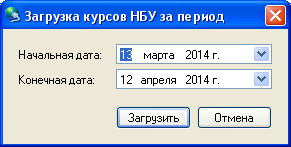 If there is a direct connection to the Internet, loading of exchange rates occurs automatically; the user only needs to select the required date and bank on the control panel.
The program saves the loaded exchange rates in its local database.
The program also provides the ability to load exchange rates for a specific period required by the user.
To do this, use the menu item or the key combination Ctrl+L.
In the dialog that appears, select the start and end date and click - the program will load the rates for the specified period into its database.
If there is a direct connection to the Internet, loading of exchange rates occurs automatically; the user only needs to select the required date and bank on the control panel.
The program saves the loaded exchange rates in its local database.
The program also provides the ability to load exchange rates for a specific period required by the user.
To do this, use the menu item or the key combination Ctrl+L.
In the dialog that appears, select the start and end date and click - the program will load the rates for the specified period into its database.
Working through a proxy server is currently not supported.
Viewing Exchange Rates
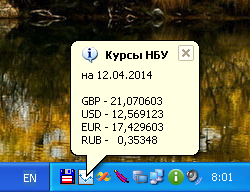 Using the program, exchange rates can be viewed both directly in the main program window and in a pop-up window (only the rates of selected currencies from the shortlist).
Configuring the Shortlist of Favorite Currencies
As practice shows, most users are directly interested in information only about the rates of some (the most popular) currencies, and not all currencies whose rates are set by banks. To allow the user to view the rates of only those currencies that interest him, the program implements the ability to work with the so-called "short list" (or list of favorite currencies). By default, this list includes the following currencies: US dollar (USD), euro (EUR), British pound (GBP), Russian ruble (RUB), Ukrainian hryvnia (UAH).
You can change the list of favorite currencies through the program settings (to open the settings dialog, press F4). The short list setting is located in the "View" section and is a string containing the letter codes of currencies separated by spaces. Enter the required currency codes into this string or remove unnecessary ones from it and click the button.
There is a more convenient way to add a currency to the favorites list. To do this, you need to select the desired currency or several currencies in the exchange rates table (having previously set the display mode of all currencies by unchecking the menu item ) and use the menu item or click the corresponding button on the toolbar.
To select multiple currencies in the exchange rates table, select the rows while holding down the Ctrl key.
Viewing Exchange Rates in the Main Program Window
The main window appears after starting the program or when you left-click on the program icon if the program was running in the background or the main window was hidden.
The main window of the program consists of two parts: a chart of changes in selected currency rates (in the upper part of the window) and a table of exchange rates (in the lower part of the window, respectively). Using the items in the main menu, you can hide or show the exchange rate chart and set or remove the mode of displaying only favorite currencies in the exchange rates table.
Viewing Exchange Rates in the Pop-up Window
A pop-up window with exchange rates is displayed when you hover the mouse cursor over the program icon in the system area of the screen. This window displays only the exchange rates from the favorites list. How to configure the list of favorite currencies, see above.
Viewing Exchange Rate Change Dynamics
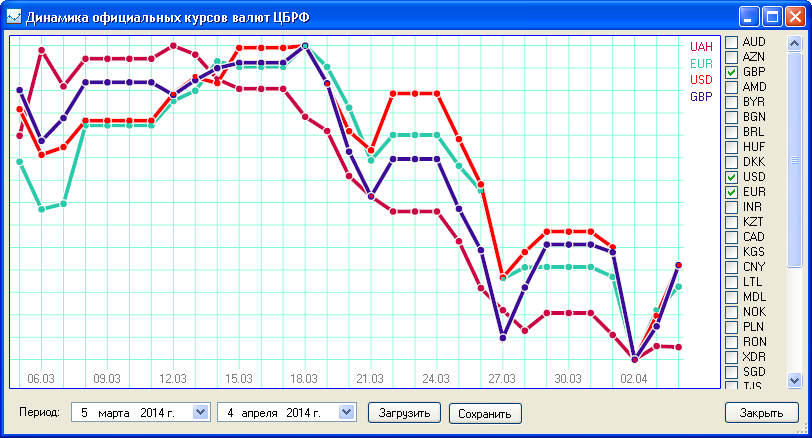 This function of the program allows the user to view the dynamics of changes in the exchange rate of any selected currency for any period. To call this window, use the menu item or press the F6 key.
The rate change is displayed as a chart. The data for display is taken by the program from its own database. It is possible to save the resulting chart to a graphic file, as well as to load rates for the selected period directly from this window.
This function of the program allows the user to view the dynamics of changes in the exchange rate of any selected currency for any period. To call this window, use the menu item or press the F6 key.
The rate change is displayed as a chart. The data for display is taken by the program from its own database. It is possible to save the resulting chart to a graphic file, as well as to load rates for the selected period directly from this window.
Printing Exchange Rates
If necessary, you can print exchange rates for a selected date. To do this, use the menu item or the key combination Ctrl+P. A preview of the file to be printed can be done using the menu item or the key combination Ctrl+V.
Copying Exchange Rates to the Clipboard
To copy exchange rates to the Windows clipboard, select the required currencies in the exchange rates table and use the menu item or press the keys Ctrl+C. As a result, the clipboard will contain information about the date, name and rate of each currency selected in the table. If it is necessary for only the rate information (without the date and name) to be copied to the clipboard, then you must use the key combination Shift+Ctrl+C.
Program Settings
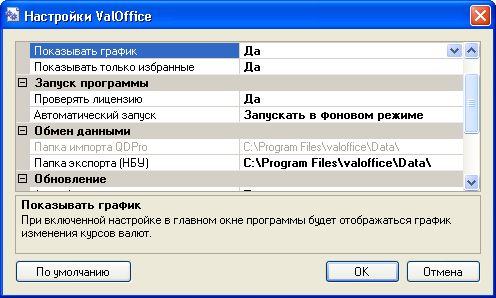 The program settings consist of the following items:
View
Favorite currencies
List of favorite currencies. Consists of letter codes of currencies separated by spaces. For more details on this setting see above. Default value: "USD EUR GBP RUB UAH".
Show chart
When the setting is enabled, the chart of changes in favorite currency rates will be displayed in the main window. This setting can be changed from the main program menu ( or keys Ctrl+G). Default value: "Yes".
Show only favorites
When the setting is enabled, the entire list of currencies will be displayed in the main program window in the exchange rates table, and when disabled - only the short list of favorite currencies. This setting can be changed from the main program menu ( or keys Ctrl+F). Default value: "Yes".
Program Launch
Check license
When the setting is enabled, the type of license for its use and its validity period will be checked when the program starts. Default value: "Yes".
Automatic launch
Determines how the program is launched when Windows starts. One of the following values can be set:
- Do not launch - the program will not start when the computer boots;
- Launch in normal mode - the program will be launched in normal mode (the main window and the program icon in the system panel will be displayed);
- Launch in background mode - the program will be launched in background mode (only the program icon will be displayed).
Default value: "Launch in background mode".
Data Exchange
QDPro Import Folder
Path to the folder from which the QDPro program imports files with exchange rates. Read only.
Export Folder (NBU)
Path to the folder where the program will create files with exchange rates in the NBU format. If this setting specifies an existing folder path, then when receiving today's exchange rates, a file with exchange rates in the NBU format (DOS encoding) will be saved to this folder. Default value: QDPro Import Folder.
Update
Auto-update
This setting determines how the program will try to contact the update server and install updates. One of the following values can be selected:
- Disable automatic update - update availability is not checked;
- Check and install on request - update availability is checked when the program starts and if an update is available, the user is prompted to download and install it;
- Download and install automatically - the program automatically checks, downloads and installs updates when it starts.
Default value: "Check and install on request".
Check period (days)
Time period in days after which update checks occur. If set to 0, the check will occur every time the program starts.
Last check
Displays the time of the last update check by the program. Read only.
Error Handling
Send to developer
Determines how the program responds to errors that occur during operation. One of the following values can be selected:
- Do not send - error information is not sent;
- Send on request - when an error occurs, the user is prompted to send information about it to the developer;
- Send automatically - the program automatically sends error information to the developer.
Default value: "Send on request".
Keep error log
When the setting is enabled, all data about errors that occurred during the program's operation will be written to a log file. Default value: "Yes". You can view the contents of the log file using the menu or the key Shift+F3